# Welcome to BotPanel

We warmly welcome you to the BotPanel Documentation!

Thank you for choosing BotPanel! In this documentation, you'll find everything you need to make your bot an advanced and customizable public bot.

To get started, explore our **Table of Contents** on the left. It offers easy access to detailed guides that cover every aspect of BotGhost. Simply select the page or module you're interested in, and you'll be directed to a comprehensive page with all the information you'll need.

We're committed to providing you with the resources necessary to create the perfect bot for your community. We hope you find this documentation helpful, and we wish you the best of luck as you build your bot. Have fun and happy bot-building!&#x20;

If your question is not answered on one of the pages, do not hesitate to join our Discord server at [discord.gg/botghost](https://discord.gg/botghost) for further support! We look forward to seeing you there!

{% hint style="success" %}
BotPanel is currently in a Beta phase. While we're continuously improving, some features may be in development. Please report any bugs you find to our team at [discord.gg/botghost](https://discord.gg/botghost).
{% endhint %}

{% hint style="info" %}
BotPanel is a product made by [BotGhost PTY LTD](https://botghost.com/).
{% endhint %}

## Get started with BotPanel

<table data-view="cards"><thead><tr><th></th><th></th><th data-hidden data-card-target data-type="content-ref"></th><th data-hidden data-card-cover data-type="files"></th></tr></thead><tbody><tr><td><strong>BotPanel Pro</strong></td><td>View information on how to purchase BotPanel Pro or upgrade your subscription.</td><td><a href="/botpanel-pro/manage-your-subscription">Manage your Subscription</a></td><td><a href="https://2161910846-files.gitbook.io/~/files/v0/b/gitbook-x-prod.appspot.com/o/spaces%2FmDHZxxLwMjnoq0qGSjFm%2Fuploads%2FZPl3iAiSH7MGD0HikLnn%2Fpro-01.png?alt=media&amp;token=88bc7a48-750a-46c6-ba57-58c996d39200">pro-01.png</a></td></tr><tr><td><strong>Changelogs</strong></td><td>See what's new.</td><td><a href="/changelogs-2025">Changelogs 2025</a></td><td><a href="https://2161910846-files.gitbook.io/~/files/v0/b/gitbook-x-prod.appspot.com/o/spaces%2FmDHZxxLwMjnoq0qGSjFm%2Fuploads%2FyQSIJiSZ2U4hC7uscEM2%2Fchangelogs02-01.png?alt=media&amp;token=81ad5872-5c52-47f8-ac5a-e7eede3d7125">changelogs02-01.png</a></td></tr><tr><td><strong>Domain Setup</strong></td><td>Learn how to setup custom domains for your website.</td><td><a href="/domain-setup-guides/guides">Guides</a></td><td><a href="https://2161910846-files.gitbook.io/~/files/v0/b/gitbook-x-prod.appspot.com/o/spaces%2FmDHZxxLwMjnoq0qGSjFm%2Fuploads%2FfDJdf9TNnLTIic2MMydX%2Fsetup%2Bdomain-01.png?alt=media&amp;token=c3106fc1-dda5-437b-949d-a89d03523cdb">setup+domain-01.png</a></td></tr></tbody></table>


# Guidelines & Contact

Review our Terms of Service, Privacy Policy, Contact options, and more.

## BotPanel Terms of Service

You can find the BotPanel Terms of Service [here](https://botpanel.gg/terms-of-service).

## BotPanel Privacy Policy

You can find the BotPanel Privacy Policy [here](https://botpanel.gg/privacy-policy).

## BotPanel Contact

Should you want to contact the team of BotPanel for any reason, please feel free to reach out to the following emails:

* For general questions or business inquiries about BotPanel, email: <mark style="color:blue;"><fabian@botghost.com></mark>
* For billing or subscription questions or issues related to BotPanel, email: <mark style="color:blue;"><billing@botghost.com></mark>

If you have any questions about using BotPanel after reading this documentation, we recommend joining our [Discord server](https://discord.gg/botghost) for support.


# Changelogs 2025

## BotPanel Fixes - September 8th, 2025

* Fixed a login redirect loop after sign-in.

## BotPanel Fixes/Updates - March 17th, 2025

* Fixed an issue where bot images would sometimes revert to the default Discord avatar.

## BotPanel Fixes/Updates - March 4th, 2025

* Changed the button text on simple landing pages from "Invite X Bot" to "Dashboard" for better clarity.
* Fixed a bug that caused an Interaction Failed error when changing the permissions of a command in BotPanel.

## BotPanel Command Enhancements - February 28th, 2025

* Applied the same logic used with servers to commands, reducing occurrences of "Unknown Commands".

## BotPanel Enhancements & Fixes - February 26th, 2025

* Analytics Performance Boost - Fixed a bug causing the Analytics page to lag when handling large data sets.
* Improved Server Tracking - New system for Analytics & Servers tab ensures better tracking of server names + icons, reducing "Unknown Servers" appearances.
* Enhanced Servers Tab - Servers now display names & icons instead of just their ID.
* Analytics Reset Button - Added a button to completely reset a bot’s analytics.
* Default 30-Day View - Analytics now show a 30-day period by default.
* Page View Fixes - Fixed issues with incorrect page routes displaying in Analytics.
* More Accurate Module Tracking - Enable/disable counts now register when a server first enables settings.

## BotPanel Updates - February 25th, 2025

* TOS & Privacy Links – The Simple landing page now includes these links if enabled.
* Guild Inputs Fixed – User dashboards now correctly handle guild inputs.
* Analytics Page Fixed – Resolved loading issues for better insights.

## BotPanel Bug Fixes + Changes - February 1st, 2025

* Modules should now default show as enabled.
* Module commands that are edited/disabled will now show or not show correctly
* Top Commands in analytics that are deleted will not show or show 'Deleted command' instead of an internal interaction id
* Fixed a few bugs with loading the analytics page
* Fixed a few bugs involving deleting/enabling BotPanel as a whole
* Command updates should now be sent to BotPanel correctly
* Sections in the analytics page which do not have data yet should show 'No Data'


# Changelogs 2024

## BotPanel Bug Fixes - December 16th, 2024

* Fixed a bug where default set values on BotGhost would not populate correctly on BotPanel in modules.
* Fixed a bug where command names of custom module commands would not change.
* Changed the colour of some widgets in the analytics section.
* Fixed a bug which cause the Status module to break if BotPanel was enabled.
* Fixed a visual bug with a link on the Homepage builder settings page.
* Fixed a visual bug with the input inside the color picker within the panel.
* Added a new input for a contact email to be displayed and populated on the TOS and Privacy page.
* Added bot emojis to the emoji selectors
* Fixed a bug with the CNAME field if inputing a wildcard domain with "." in it.
* Added new settings for the Navbar for the Advanced homepage to be able to control the background and text colors.
* Fixed the logout button on the Dashboard
* When downgrading subscriptions the extra pages will no longer show and will be disabled by default.
* The extra pages are now disabled correctly.
* Fixed a bug with embed inputs rendering backwards.

## BotPanel Open Beta to all users - October 28th, 2024

Today we are opening up our BotPanel open beta to all users. This means that we are lifting up the beta + premium subscription requirements currently in place to join the open beta.

Get started by heading over to BotPanel [here](https://botpanel.gg/). You will automatically be upgraded to a Pro subscription. This will unlock all BotPanel features. **This subscription will be removed once our Open Beta period ends**.

Reminder: BotPanel is currently in a scuffed open beta. Some features may not be added or work at all.&#x20;

## BotPanel Custom Authentication - October 23rd, 2024

Today we are adding the ability to bring your own authentication to your bot's panel. This allows you to **use your own Discord application for users to login with** instead of the default BotPanel one. Users will be shown your Discord bot when logging in instead of any reference to BotPanel.

Simply add your Client Id, Client Secret and a redirect URL to your discord bot's settings. If you need to log all users out you can also quickly reset your bot's Authentication secret at any time.

<figure><img src="https://2161910846-files.gitbook.io/~/files/v0/b/gitbook-x-prod.appspot.com/o/spaces%2FmDHZxxLwMjnoq0qGSjFm%2Fuploads%2FYCF3QvfwlwXTrw6UBUGA%2Fimage.png?alt=media&amp;token=008cc388-68b7-4dbd-8160-33ab4d3253ed" alt=""><figcaption></figcaption></figure>

## BotPanel Home Page Builder + Analytics - October 22nd, 2024

We are releasing the scuffed version of the home page builder + analytics page for BotPanel today.

### Homepage builder

BotPanel features a homepage builder that allows you to add sections to your page. You can individually style and customize these components to your liking. Currently these feature static data and use basic styling/layouts. Some of these components such as servers/team/statistics will auto populate data in the future.

<figure><img src="https://2161910846-files.gitbook.io/~/files/v0/b/gitbook-x-prod.appspot.com/o/spaces%2FmDHZxxLwMjnoq0qGSjFm%2Fuploads%2FMmRwrt3CaWZNOiKuAl17%2Fimage.png?alt=media&amp;token=a5715664-9376-4371-8013-dbb2592c077f" alt=""><figcaption></figcaption></figure>

### Homepage Style

You can choose between three home page options:

* Basic Landing Page
* Advanced Home page (Using the Builder)
* Dashboard only mode

### Homepage Options

We have also added a bunch of options for your home page. These include:

* Font options (Any google font is supported)
* Background options (Gradient or Solid Color)
* Navbar options
* Button styling

<figure><img src="https://2161910846-files.gitbook.io/~/files/v0/b/gitbook-x-prod.appspot.com/o/spaces%2FmDHZxxLwMjnoq0qGSjFm%2Fuploads%2FTAY1aGbbigbwE7Q5MQUA%2Fimage.png?alt=media&amp;token=edc6846b-e86e-45e6-bc8f-77c102b1309f" alt=""><figcaption></figcaption></figure>

### Extra Pages

We have also added two new pages that you can toggle on/off. These include:

* Terms of Service
* Privacy Policy These pages will autofill with your bot's information

<figure><img src="https://2161910846-files.gitbook.io/~/files/v0/b/gitbook-x-prod.appspot.com/o/spaces%2FmDHZxxLwMjnoq0qGSjFm%2Fuploads%2Fh4x1oShOYAnPgIzubAag%2Fimage.png?alt=media&amp;token=9eee9dee-2788-457b-b90f-487c6e2b1367" alt=""><figcaption></figcaption></figure>

### Analytics

A few days ago we also added our Analytics page. This page automatically gathers stats and usage information about your bot when connected to BotPanel. Some of these stats include:

* Current Server Count
* Member Counts
* Command usage count
* Page views
* Messages received
* Users handled
* Most active server
* Most popular command
* Module enabled counts
* Message count per guild
* Member count per guild
* Command usage per guild

<figure><img src="https://2161910846-files.gitbook.io/~/files/v0/b/gitbook-x-prod.appspot.com/o/spaces%2FmDHZxxLwMjnoq0qGSjFm%2Fuploads%2FrJ92jPnBW0Z9od4bPhIH%2Fimage.png?alt=media&amp;token=5a5f25aa-f35b-4dfe-94a4-d3398589e9cb" alt=""><figcaption></figcaption></figure>

### Open Beta

As a reminder BotPanel is currently still in Open Beta and only available to premium BG users with a bot on the BG beta servers. It will soon be available to all users.

## BotPanel Bug Fixes + Changes - October 12th, 2024

Some bug fixes + changes:

* We have wiped the DNS records due to a bug with our system leaving hanging DNS records after bot deletion. Please reconfigure your DNS if you had a custom domain
* We have cleared server settings due to a bug with how commands were being applied.
* Fixed a bug with the name + icon of the bots not appearing after they are created.

## BotPanel Open Beta (Scuffed Version) - October 10th, 2024

Today we are releasing an open beta limited version of BotPanel for premium members to test and use.

#### To access this version you must have:

* An active BotGhost Subscription (free premium does not count)
* A bot on the beta servers of BG.

This version of BP is **very limited and is intended to test the core functionality of the product**. Bot's made will automatically be upgraded to a pro plan of BP during the Open Beta period. After the open beta ends, the pro subscriptions will be released and all bots will be downgraded. Data will not be wiped after the Open Beta ends.

**Features in the open beta:**

* Module settings for individual servers
* Basic landing page
* Configurable dashboard
* Basic stats
* DNS/Custom domains

**Intended features to be released during Open Beta:**

* Home page builder
* More advanced analytics

#### Links

[BotPanel](https://botpanel.gg/) [BotPanel Dashboard](https://dashboard.botpanel.gg/)

**BotPanel is currently available to BotGhost premium members only. BotPanel will be avaiable to all users once the Open Beta ends!**


# Billing & Subscription Support

Learn how to contact our dedicated billing support team!

If you are looking to ask a question related to a BotPanel Pro subscription, you're in the right place! Our billing & subscription support will be happy to assist you with any billing & support-related inquiries. Feel free to reach out using either of the following methods:

## Discord Server

You can contact Billing & Subscription Support by creating a ticket in our [Discord server](https://discord.gg/botghost). Simply navigate to the billing-support channel, and follow the given instructions.

## Email

You can also contact Billing & Subscription Support directly via email. Simply send an email to <mark style="color:blue;"><billing@botghost.com></mark> with the details of your inquiry, our billing team will respond as soon as possible.


# Manage your Subscription

Explore the possibilities with your subscription on this page.

## BotPanel Pro Customer Portal

You can manage active or expired BotPanel Pro subscriptions and trials via the BotPanel Pro customer portal. You can navigate this page by clicking any button on the [Pro page in the BotPanel dashboard](https://dashboard.botpanel.gg/pro). Once you have located the page image below, follow the instructions on the page to proceed.

<figure><img src="https://2161910846-files.gitbook.io/~/files/v0/b/gitbook-x-prod.appspot.com/o/spaces%2FmDHZxxLwMjnoq0qGSjFm%2Fuploads%2Fk9xnt2gbvmE6ldSki8lo%2Fimage.png?alt=media&amp;token=27e72076-b657-47b3-b949-e646cf21d795" alt=""><figcaption></figcaption></figure>

## Manage Subscription Plan

The [#botpanel-pro-customer-portal](#botpanel-pro-customer-portal "mention") allows you to view your current subscription and upgrade, downgrade, or cancel it. Under Current Subscription, you can see all the details for your subscription. These details include the name of the tier you've subscribed to, how much you're charged and how often, the renewal date, payment method, and what bot the subscription applies to. On the right, you can choose to update or cancel your subscription by clicking either button.

<figure><img src="https://2161910846-files.gitbook.io/~/files/v0/b/gitbook-x-prod.appspot.com/o/spaces%2FmDHZxxLwMjnoq0qGSjFm%2Fuploads%2FyAdLknueJWLd8rImEeGq%2Fimage.png?alt=media&amp;token=d6fa3c88-77e0-4b2f-93f3-39d6dde3c3d8" alt=""><figcaption></figcaption></figure>

If you've decided to update your subscription, you will see a new menu which will allow you to choose your subscription. You can choose at the top whether you'd like a monthly or yearly payment, and browse through available subscriptions. You can learn more about all of the available subscriptions on the [Pro page in the BotPanel dashboard](https://dashboard.botpanel.gg/pro).

{% hint style="info" %}
The pricing in the image may not be accurate to date and may be changed.
{% endhint %}

<figure><img src="https://2161910846-files.gitbook.io/~/files/v0/b/gitbook-x-prod.appspot.com/o/spaces%2FmDHZxxLwMjnoq0qGSjFm%2Fuploads%2F8EtYa2KBySqmVYCmRwrm%2Fimage.png?alt=media&amp;token=57d332aa-03e4-4e72-aba6-fb6d468dd8dc" alt=""><figcaption></figcaption></figure>

## Manage Payment Method

The [#botpanel-pro-customer-portal](#botpanel-pro-customer-portal "mention") allows you to view and change your payment methods for BotPanel. To change the payment method for your active BotPanel Pro subscription, start by heading over to the [#botpanel-pro-customer-portal](#botpanel-pro-customer-portal "mention"). Under Current Subscription, you can view all the information about your active subscription. At the bottom, click the pencil icon next to your current payment method.

<figure><img src="https://2161910846-files.gitbook.io/~/files/v0/b/gitbook-x-prod.appspot.com/o/spaces%2FmDHZxxLwMjnoq0qGSjFm%2Fuploads%2FyAdLknueJWLd8rImEeGq%2Fimage.png?alt=media&amp;token=d6fa3c88-77e0-4b2f-93f3-39d6dde3c3d8" alt=""><figcaption></figcaption></figure>

The landing page will allow you to select from a list of available payment methods. At the bottom, an option to add a payment method will appear, where you can follow the instructions on screen to add another card to your saved payment methods. Once your changes have been made, be sure to click the blue Update button at the bottom of the page.

<figure><img src="https://2161910846-files.gitbook.io/~/files/v0/b/gitbook-x-prod.appspot.com/o/spaces%2FmDHZxxLwMjnoq0qGSjFm%2Fuploads%2Fz1zvj3r4E02mxIv6DMDV%2Fimage.png?alt=media&amp;token=2d335548-c953-4e65-991a-546a72b7ad1e" alt=""><figcaption></figcaption></figure>

## Manage Subscription History

The [#botpanel-pro-customer-portal](#botpanel-pro-customer-portal "mention") also allows you to view and download your subscription invoice history. You can find this under Invoice History at the bottom of the homepage. Here, you can view past transactions and click on any transaction to learn more about it.

<figure><img src="https://2161910846-files.gitbook.io/~/files/v0/b/gitbook-x-prod.appspot.com/o/spaces%2FmDHZxxLwMjnoq0qGSjFm%2Fuploads%2FvZD9Sszg9Xcj5oC4drtZ%2Fimage.png?alt=media&amp;token=b6292a7d-ab57-44fb-92fb-8893ff38a176" alt=""><figcaption></figcaption></figure>

Once you've found the transaction you'd like to learn more about, you can click it to open a new pop-up which will give you more details. You can also choose to download an invoice or receipt as a PDF file which will open in a new tab.

<figure><img src="https://2161910846-files.gitbook.io/~/files/v0/b/gitbook-x-prod.appspot.com/o/spaces%2FmDHZxxLwMjnoq0qGSjFm%2Fuploads%2FXulDV4Tm2ZlYFlU43Wvk%2Fimage.png?alt=media&amp;token=ede53259-2d68-454d-91c5-3bd978a72c6d" alt=""><figcaption></figcaption></figure>

## Manage Billing Details

You can view and change your billing details such as your billing name and address directly from the [#botpanel-pro-customer-portal](#botpanel-pro-customer-portal "mention"). To do this, click the Update Information button under Billing Information.

<figure><img src="https://2161910846-files.gitbook.io/~/files/v0/b/gitbook-x-prod.appspot.com/o/spaces%2FmDHZxxLwMjnoq0qGSjFm%2Fuploads%2F1p69o4nW4gpX5BmCcVq5%2Fimage.png?alt=media&amp;token=debb4b0c-9893-4c82-9971-6cc309376192" alt=""><figcaption></figcaption></figure>

Once you've opened this page, you can manage your billing details with the on-screen fields. Type your changes in the respective fields, aand click the Save button at the bottom of the page once finished.

<figure><img src="https://2161910846-files.gitbook.io/~/files/v0/b/gitbook-x-prod.appspot.com/o/spaces%2FmDHZxxLwMjnoq0qGSjFm%2Fuploads%2FcrUxSZgSCQdxD7gJeuYj%2Fimage.png?alt=media&amp;token=bb21b134-4bd1-44a2-b08e-68e98a902f27" alt=""><figcaption></figcaption></figure>

## Contact Us

If you would like to transfer an active subscription or have an unresolved billing question or concern that this page couldn't answer, please contact our [Billing & Subscription Support](/botpanel-pro/billing-and-subscription-support) team and they will happily assist you further.


# Upgrade your Subscription

## Manage Subscription Plan

The [Manage your Subscription](/botpanel-pro/manage-your-subscription#botpanel-pro-customer-portal) allows you to view your current subscription and upgrade, downgrade, or cancel it. Under Current Subscription, you can see all the details for your subscription. These details include the name of the tier you've subscribed to, how much you're charged and how often, the renewal date, payment method, and what bot the subscription applies to. On the right, you can choose to update or cancel your subscription by clicking either button.

<figure><img src="https://2161910846-files.gitbook.io/~/files/v0/b/gitbook-x-prod.appspot.com/o/spaces%2FmDHZxxLwMjnoq0qGSjFm%2Fuploads%2FyAdLknueJWLd8rImEeGq%2Fimage.png?alt=media&amp;token=d6fa3c88-77e0-4b2f-93f3-39d6dde3c3d8" alt=""><figcaption></figcaption></figure>

If you've decided to update your subscription, you will see a new menu which will allow you to choose your subscription. You can choose at the top whether you'd like a monthly or yearly payment, and browse through available subscriptions. You can learn more about all of the available subscriptions on the [Pro page in the BotPanel dashboard](https://dashboard.botpanel.gg/pro).

{% hint style="info" %}
The pricing in the image may not be accurate to date and may be changed.
{% endhint %}

<figure><img src="https://2161910846-files.gitbook.io/~/files/v0/b/gitbook-x-prod.appspot.com/o/spaces%2FmDHZxxLwMjnoq0qGSjFm%2Fuploads%2F8EtYa2KBySqmVYCmRwrm%2Fimage.png?alt=media&amp;token=57d332aa-03e4-4e72-aba6-fb6d468dd8dc" alt=""><figcaption></figcaption></figure>

## Learn More

Didn't find what you're looking for on this page? Head over to our [Manage your Subscription](/botpanel-pro/manage-your-subscription) documentation to learn more!


# Change Payment Method

## Change Payment Method

The [Manage your Subscription](/botpanel-pro/manage-your-subscription#botpanel-pro-customer-portal) allows you to view and change your payment methods for BotPanel. To change the payment method for your active BotPanel Pro subscription, start by heading over to the [Manage your Subscription](/botpanel-pro/manage-your-subscription#botpanel-pro-customer-portal). Under Current Subscription, you can view all the information about your active subscription. At the bottom, click the pencil icon next to your current payment method.

<figure><img src="https://2161910846-files.gitbook.io/~/files/v0/b/gitbook-x-prod.appspot.com/o/spaces%2FmDHZxxLwMjnoq0qGSjFm%2Fuploads%2FyAdLknueJWLd8rImEeGq%2Fimage.png?alt=media&amp;token=d6fa3c88-77e0-4b2f-93f3-39d6dde3c3d8" alt=""><figcaption></figcaption></figure>

The landing page will allow you to select from a list of available payment methods. At the bottom, an option to add a payment method will appear, where you can follow the instructions on screen to add another card to your saved payment methods. Once your changes have been made, be sure to click the blue Update button at the bottom of the page.

<figure><img src="https://2161910846-files.gitbook.io/~/files/v0/b/gitbook-x-prod.appspot.com/o/spaces%2FmDHZxxLwMjnoq0qGSjFm%2Fuploads%2Fz1zvj3r4E02mxIv6DMDV%2Fimage.png?alt=media&amp;token=2d335548-c953-4e65-991a-546a72b7ad1e" alt=""><figcaption></figcaption></figure>

## Learn More

Didn't find what you're looking for on this page? Head over to our [Manage your Subscription](/botpanel-pro/manage-your-subscription) documentation to learn more!


# FAQ

Listed below are some commonly asked questions and answers!

## **I’ve added the required records to my domain DNS Records but my panel is not yet accessible/active on BotPanel?** <a href="#ed6244cdu7b7" id="ed6244cdu7b7"></a>

Your newly created records can take up to 24 hours to save and take effect.

***

## **What is the difference between a domain and a subdomain?** <a href="#id-7vd2ni7z5uj" id="id-7vd2ni7z5uj"></a>

A *domain* is a unique address on the internet that represents a website, like **example.com** while a *subdomain* is a prefix added to the main domain name ( example.com ) to create a separate section or category within the site, like **example.example.com**.

***

## **I don’t have a domain, where can I buy one?** <a href="#vi23499e3fgd" id="vi23499e3fgd"></a>

You can purchase a domain on NameCheap [here](https://namecheap.pxf.io/GKXKJ9) and get your own domain for your BotPanel!


# Guides

Setting up a custom domain on BotPanel is a great way to personalize your panel and make it look more professional. By replacing the default BotPanel domain with your own, you can create a unique branded link that’s easy to remember. In the following guides, we’ll show you how to link your custom domain to BotPanel easily using your preferred domain provider.

{% content-ref url="/pages/dbWCjFu1iA2NnyRpMaB9" %}
[NameCheap](/domain-setup-guides/guides/namecheap)
{% endcontent-ref %}

{% content-ref url="/pages/maHuDSJ9th50mBm6yWe7" %}
[Cloudflare](/domain-setup-guides/guides/cloudflare)
{% endcontent-ref %}


# NameCheap

In this guide, you'll learn how to connect your NameCheap domain or subdomain to BotPanel.

## **Getting Started** <a href="#id-44i2qmvpb6e8" id="id-44i2qmvpb6e8"></a>

Before we begin, let’s make sure you have everything you need to setup.

* A NameCheap Domain (or purchase one [**here**](https://namecheap.pxf.io/GKXKJ9))
* A BotPanel bot with any tier of [BotPanel Pro](https://dashboard.botpanel.gg/pro)

## **Configuring DNS on BotPanel** <a href="#kw7mvw57oqf3" id="kw7mvw57oqf3"></a>

{% stepper %}
{% step %}
Login into the [BotPanel Dashboard](https://dashboard.botpanel.gg/panel/dns) and select the bot to which you would like to add the domain.
{% endstep %}

{% step %}
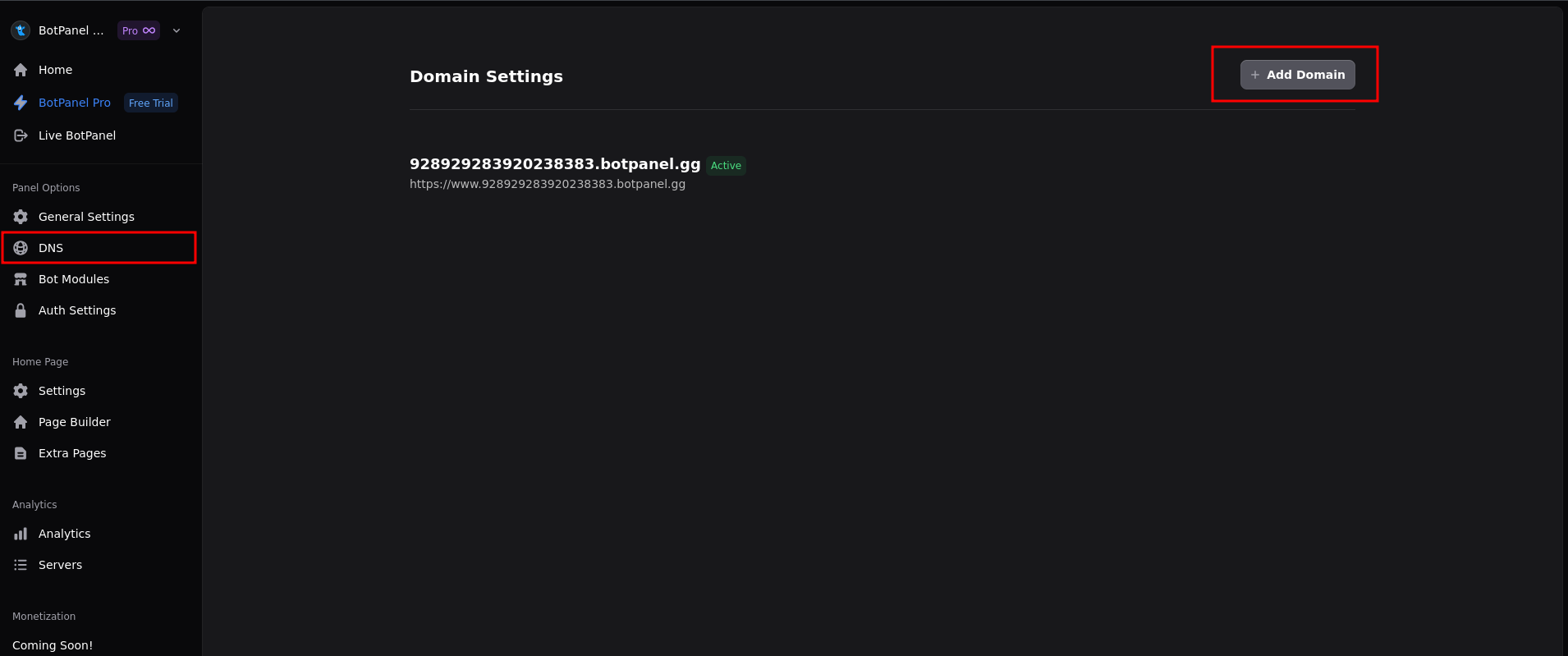
Visit the DNS tab on the side menu and click the Add Domain button.

<figure><img src="https://2161910846-files.gitbook.io/~/files/v0/b/gitbook-x-prod.appspot.com/o/spaces%2FmDHZxxLwMjnoq0qGSjFm%2Fuploads%2FpYxGBH5TRmgRY84G5sO5%2F0.png?alt=media" alt="" width="563"><figcaption></figcaption></figure>
{% endstep %}

{% step %}
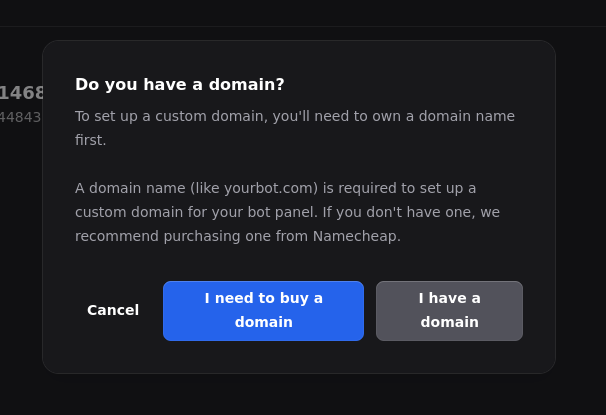
You will be prompted with an option to buy the domain via our partner NameCheap, or if you have already purchased a domain on NameCheap. Select one of the options and continue.&#x20;

<img src="https://2161910846-files.gitbook.io/~/files/v0/b/gitbook-x-prod.appspot.com/o/spaces%2FmDHZxxLwMjnoq0qGSjFm%2Fuploads%2FyhyJubFY7pQMdccvEzGr%2F1.png?alt=media" alt="" width="455">
{% endstep %}

{% step %}
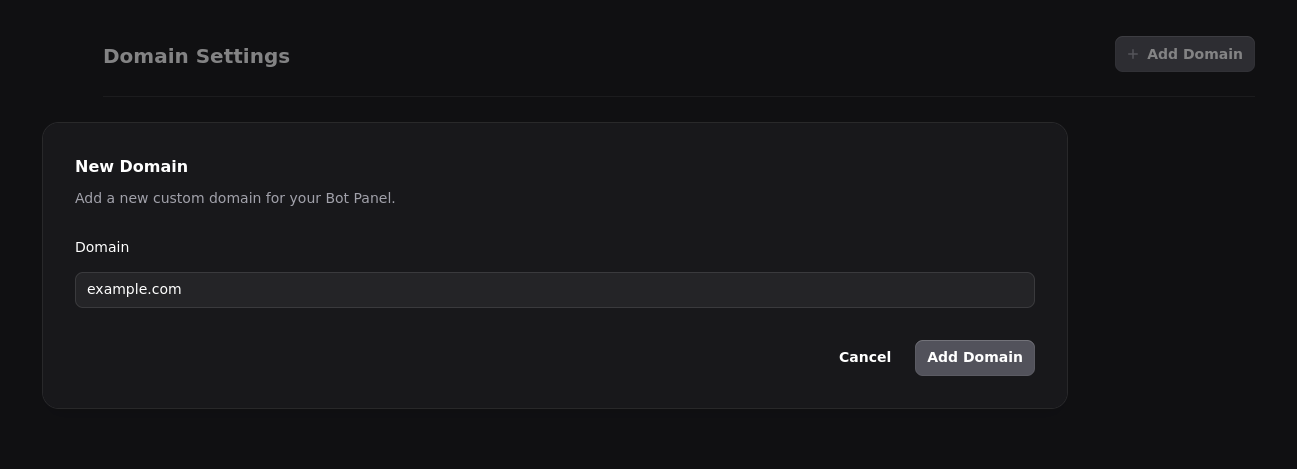
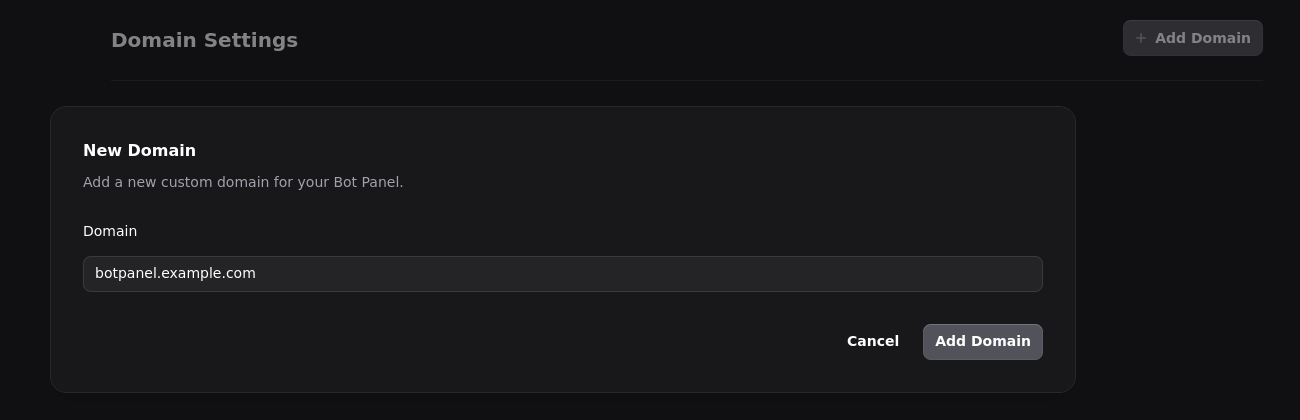
Enter the domain or subdomain you would like to use and have purchased on NameCheap, then click the "Add Domain" button.\
\
Domain Example:
<figure><img src="https://2161910846-files.gitbook.io/~/files/v0/b/gitbook-x-prod.appspot.com/o/spaces%2FmDHZxxLwMjnoq0qGSjFm%2Fuploads%2FHkOUKPWVHdqbbMmPhOht%2F2.png?alt=media" alt="" width="563"><figcaption></figcaption></figure>

Subdomain Example:

<figure><img src="https://2161910846-files.gitbook.io/~/files/v0/b/gitbook-x-prod.appspot.com/o/spaces%2FmDHZxxLwMjnoq0qGSjFm%2Fuploads%2FHyOU4ajsSah4xz4940n7%2F3.png?alt=media" alt="" width="563"><figcaption></figcaption></figure>
{% endstep %}

{% step %}
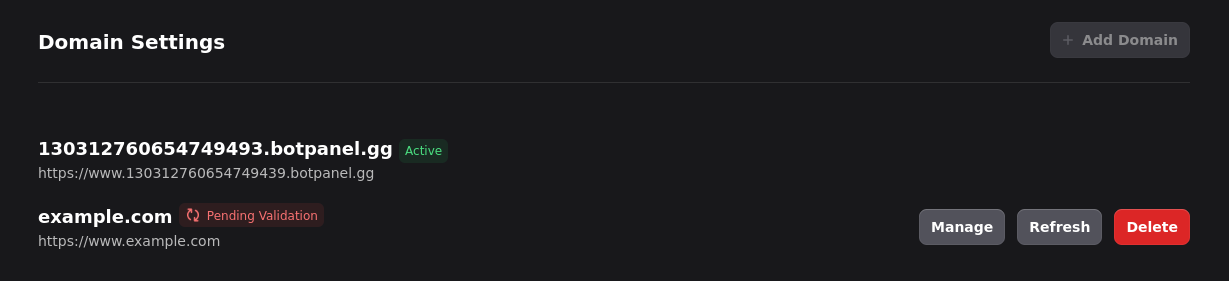
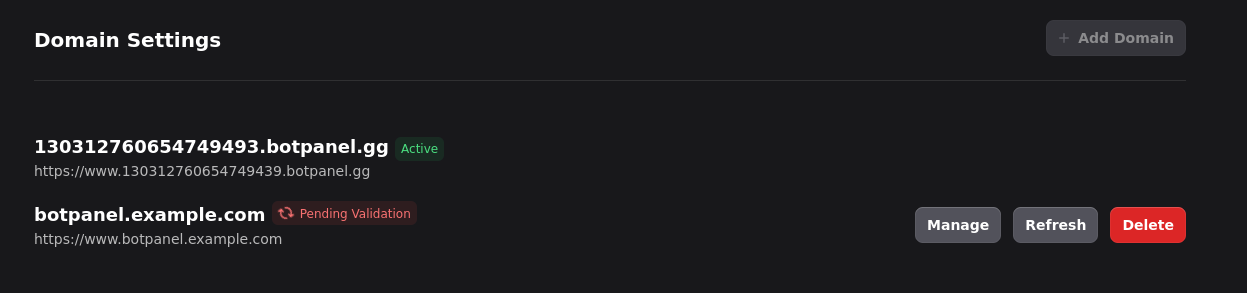
Upon adding your domain, the domain should appear on the domain list under the DNS tab. You should see something like this:

<img src="https://2161910846-files.gitbook.io/~/files/v0/b/gitbook-x-prod.appspot.com/o/spaces%2FmDHZxxLwMjnoq0qGSjFm%2Fuploads%2FvaefOgv938h0AAKYutFk%2F4.png?alt=media" alt="" width="563">

Using a subdomain:

<figure><img src="https://2161910846-files.gitbook.io/~/files/v0/b/gitbook-x-prod.appspot.com/o/spaces%2FmDHZxxLwMjnoq0qGSjFm%2Fuploads%2FJc2Y27asBCDdOhksuHXw%2F5.png?alt=media" alt=""><figcaption></figcaption></figure>
{% endstep %}

{% step %}
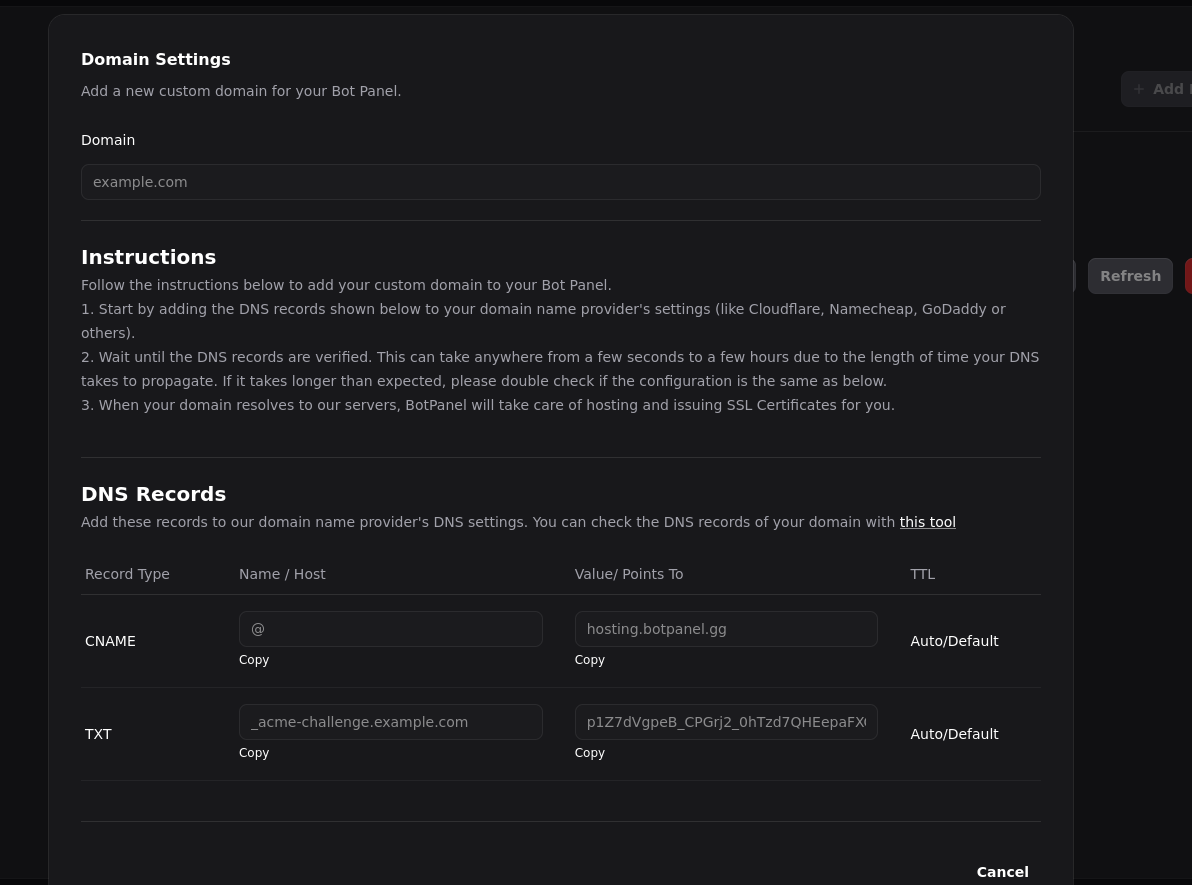
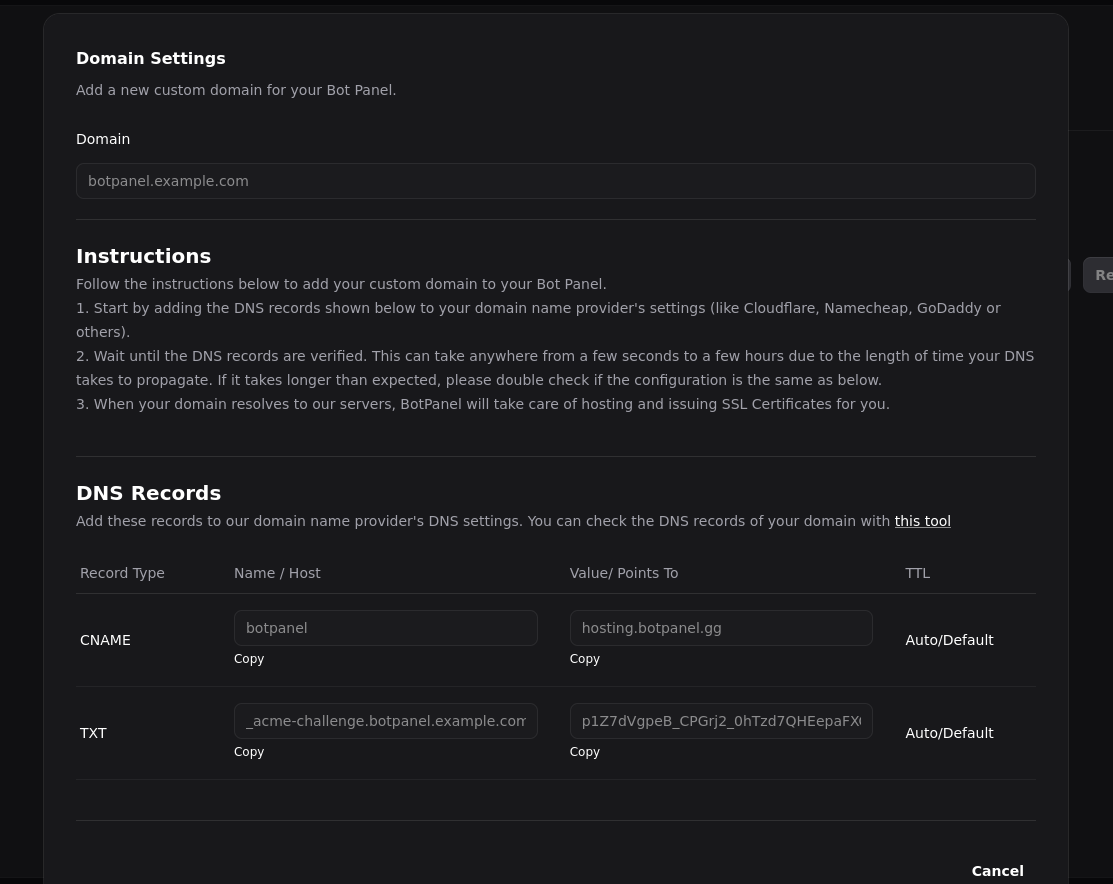
Click the Manage button to view the DNS records you will later need to add to NameCheap in order to verify your domain and link it to the BotPanel. You should see something like this:

<img src="https://2161910846-files.gitbook.io/~/files/v0/b/gitbook-x-prod.appspot.com/o/spaces%2FmDHZxxLwMjnoq0qGSjFm%2Fuploads%2FZ3PwDC6LZ17nR04vJRjy%2F6.png?alt=media" alt="" width="563">

Using a subdomain:

<figure><img src="https://2161910846-files.gitbook.io/~/files/v0/b/gitbook-x-prod.appspot.com/o/spaces%2FmDHZxxLwMjnoq0qGSjFm%2Fuploads%2F06u1OGHRBZ15VRJyaWX8%2F7.png?alt=media" alt="" width="563"><figcaption></figcaption></figure>

You will need the information provided to you that is similar to the ones on the screenshot later in the NameCheap DNS configuration guide below.
{% endstep %}
{% endstepper %}

## **Configuring DNS on NameCheap** <a href="#id-4a2k48ftgv4f" id="id-4a2k48ftgv4f"></a>

{% stepper %}
{% step %}
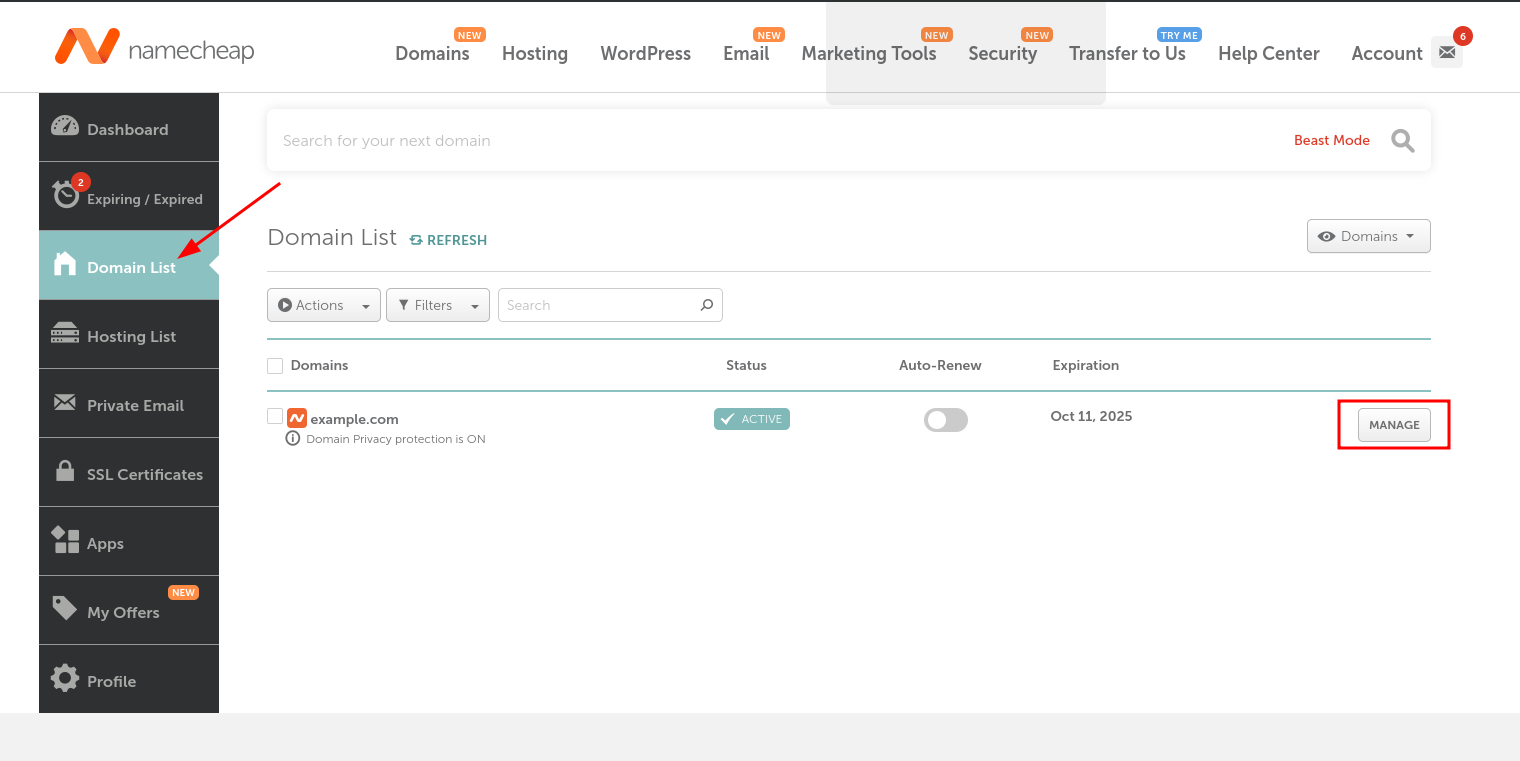
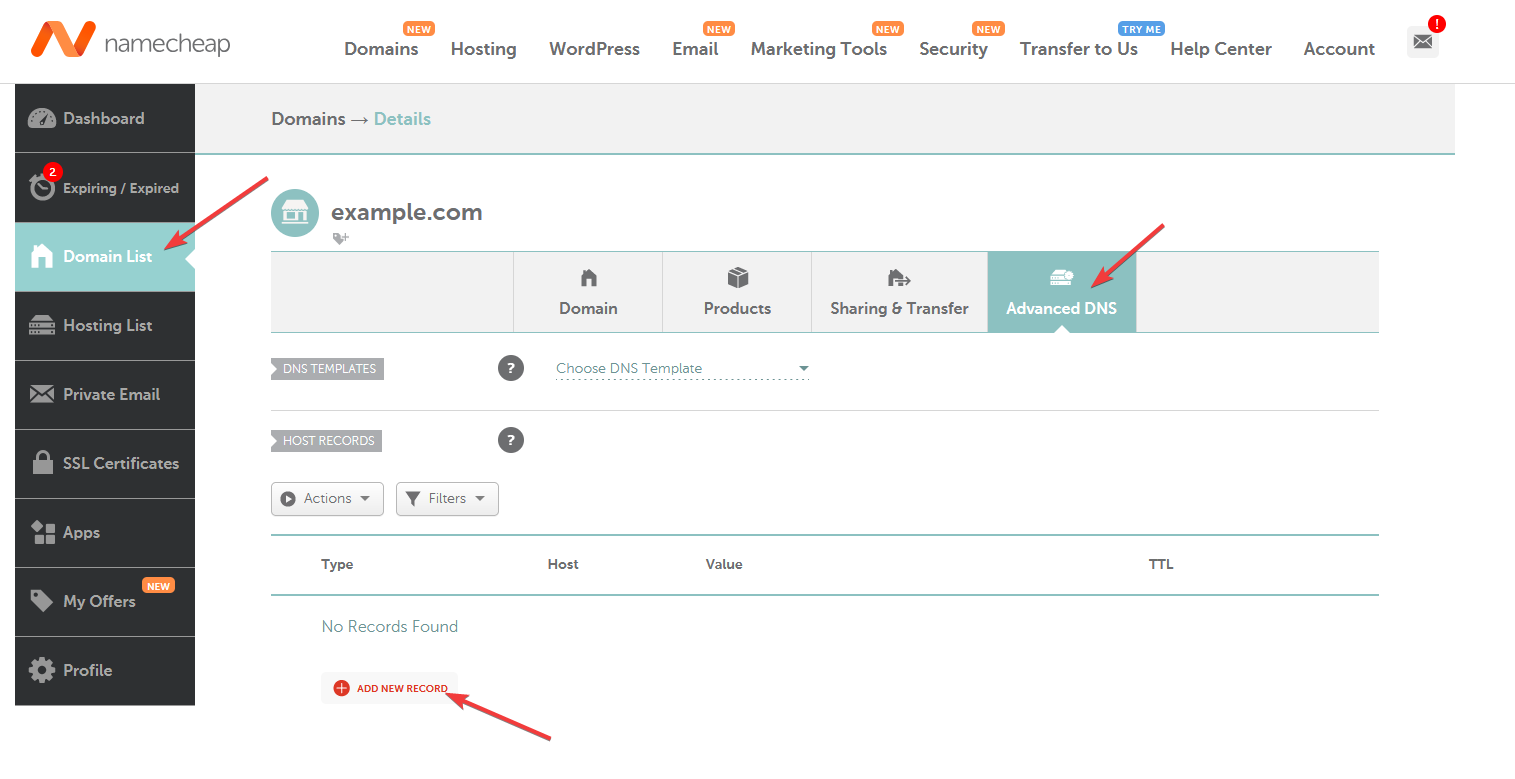
Login into your NameCheap account and select the domain you have setup DNS for on the BotPanel in the previous guide. You can do this by going to the Domain List tab on the sidebar of the NameCheap dashboard.

<img src="https://2161910846-files.gitbook.io/~/files/v0/b/gitbook-x-prod.appspot.com/o/spaces%2FmDHZxxLwMjnoq0qGSjFm%2Fuploads%2FFhCI3bGwBErqLhoVWwKd%2F8.png?alt=media" alt="" width="563">
{% endstep %}

{% step %}
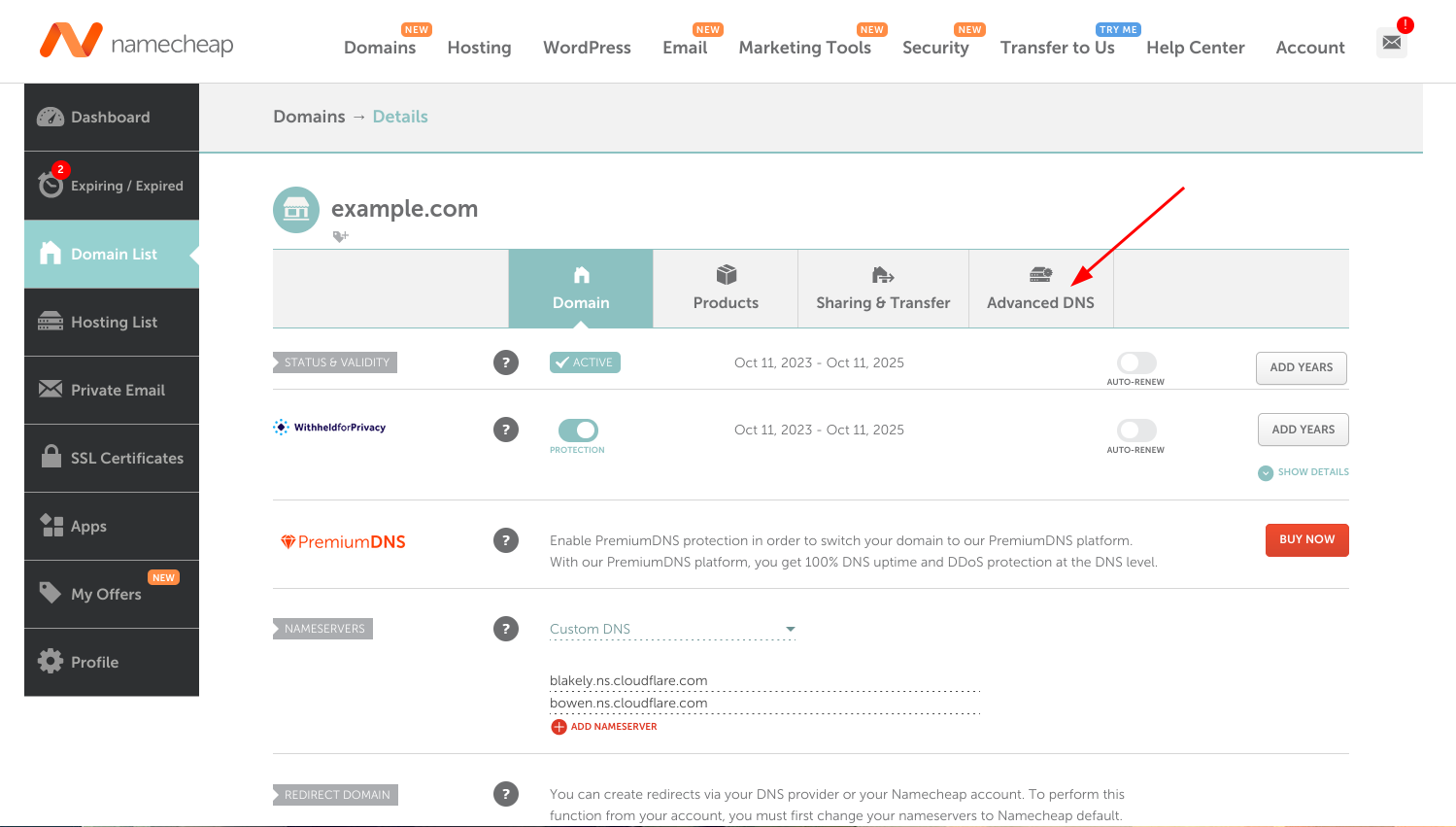
Visit the Advanced DNS tab in your domain management page.
<img src="https://2161910846-files.gitbook.io/~/files/v0/b/gitbook-x-prod.appspot.com/o/spaces%2FmDHZxxLwMjnoq0qGSjFm%2Fuploads%2FSM5X03saCttQd7NXXB9V%2F9.png?alt=media" alt="" width="563">
{% endstep %}

{% step %}
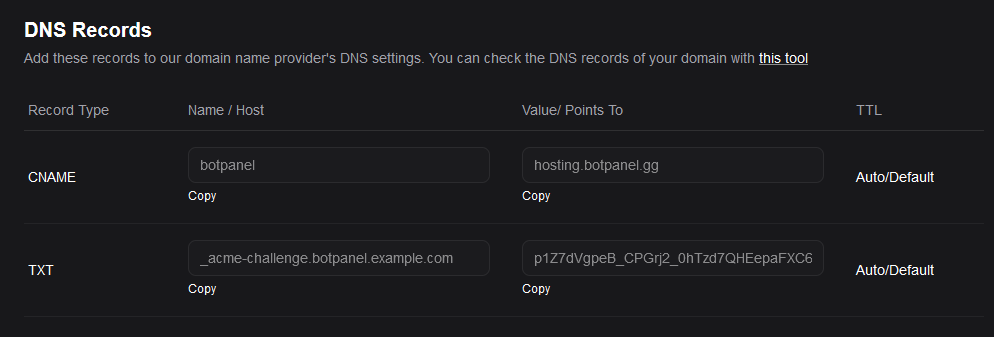
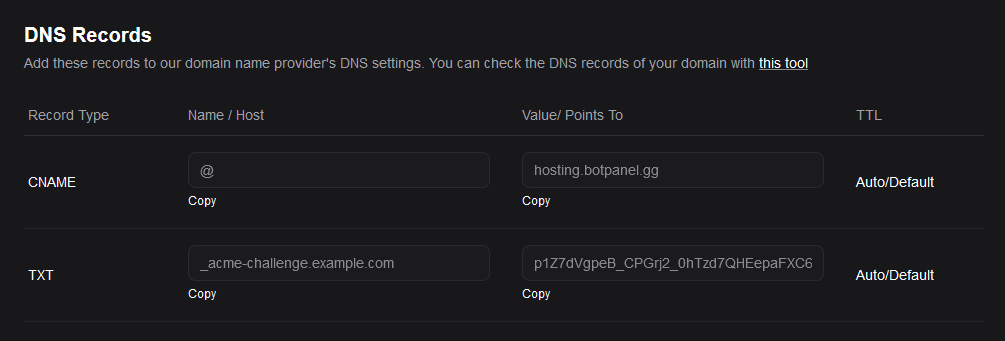
Add the records provided to you on the BotPanel under the DNS tab in your domain settings to the NameCheap ( Step 2 ).\
\
The records provided to you on the BotPanel should look something like this:
<img src="https://2161910846-files.gitbook.io/~/files/v0/b/gitbook-x-prod.appspot.com/o/spaces%2FmDHZxxLwMjnoq0qGSjFm%2Fuploads%2FiLcGyfOyL08TxH01Tb7O%2F10.png?alt=media" alt="" width="563">

Using a subdomain:

<figure><img src="https://2161910846-files.gitbook.io/~/files/v0/b/gitbook-x-prod.appspot.com/o/spaces%2FmDHZxxLwMjnoq0qGSjFm%2Fuploads%2FD7YIaug4oLu4M4qi9gH4%2F11.png?alt=media" alt="" width="563"><figcaption></figcaption></figure>
{% endstep %}

{% step %}
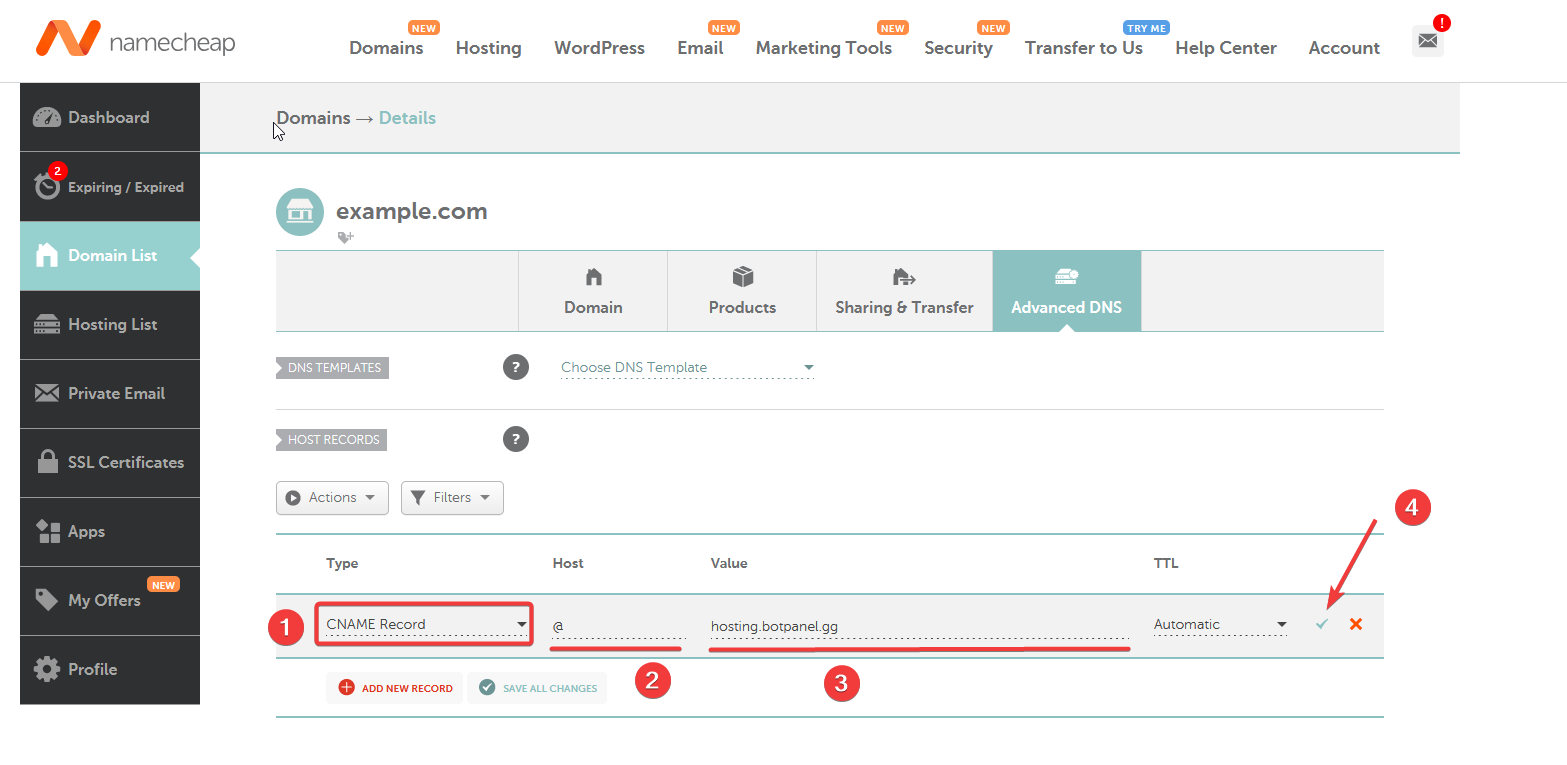
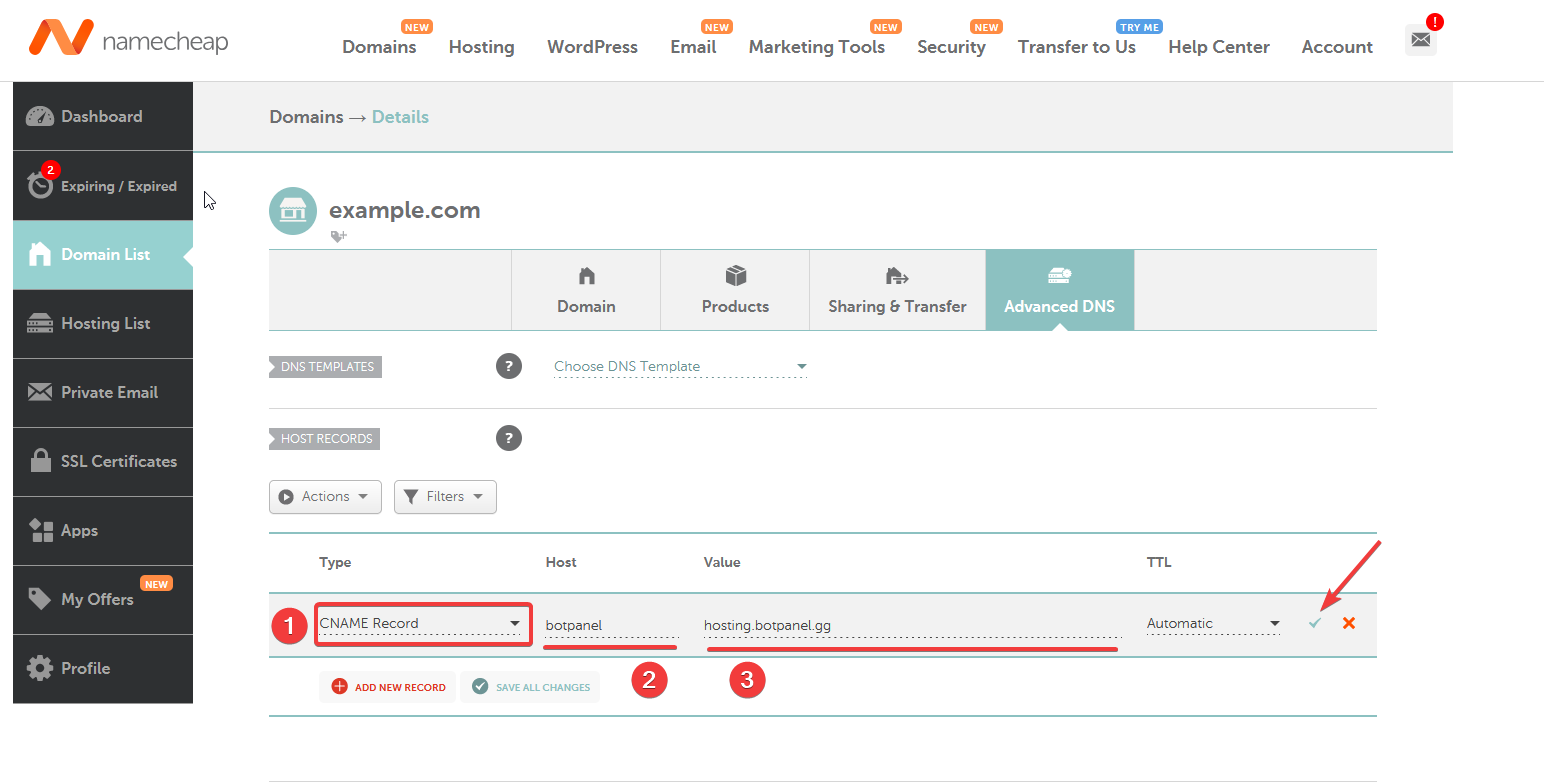
Add the **CNAME** record using the Add Record button and add the Name/Host and the Value/Points provided to you on the BotPanel for the CNAME record.

<img src="https://2161910846-files.gitbook.io/~/files/v0/b/gitbook-x-prod.appspot.com/o/spaces%2FmDHZxxLwMjnoq0qGSjFm%2Fuploads%2FD1dRN08GMwUn05x1HTfq%2F12.png?alt=media" alt="" width="563">

<img src="https://2161910846-files.gitbook.io/~/files/v0/b/gitbook-x-prod.appspot.com/o/spaces%2FmDHZxxLwMjnoq0qGSjFm%2Fuploads%2FjYRLghj57ArkED2qsKMV%2F13.png?alt=media" alt="" width="563">

Using a subdomain:

<figure><img src="https://2161910846-files.gitbook.io/~/files/v0/b/gitbook-x-prod.appspot.com/o/spaces%2FmDHZxxLwMjnoq0qGSjFm%2Fuploads%2FolPmv1rk2b06qBnwvHg0%2F14.png?alt=media" alt="" width="563"><figcaption></figcaption></figure>
{% endstep %}

{% step %}
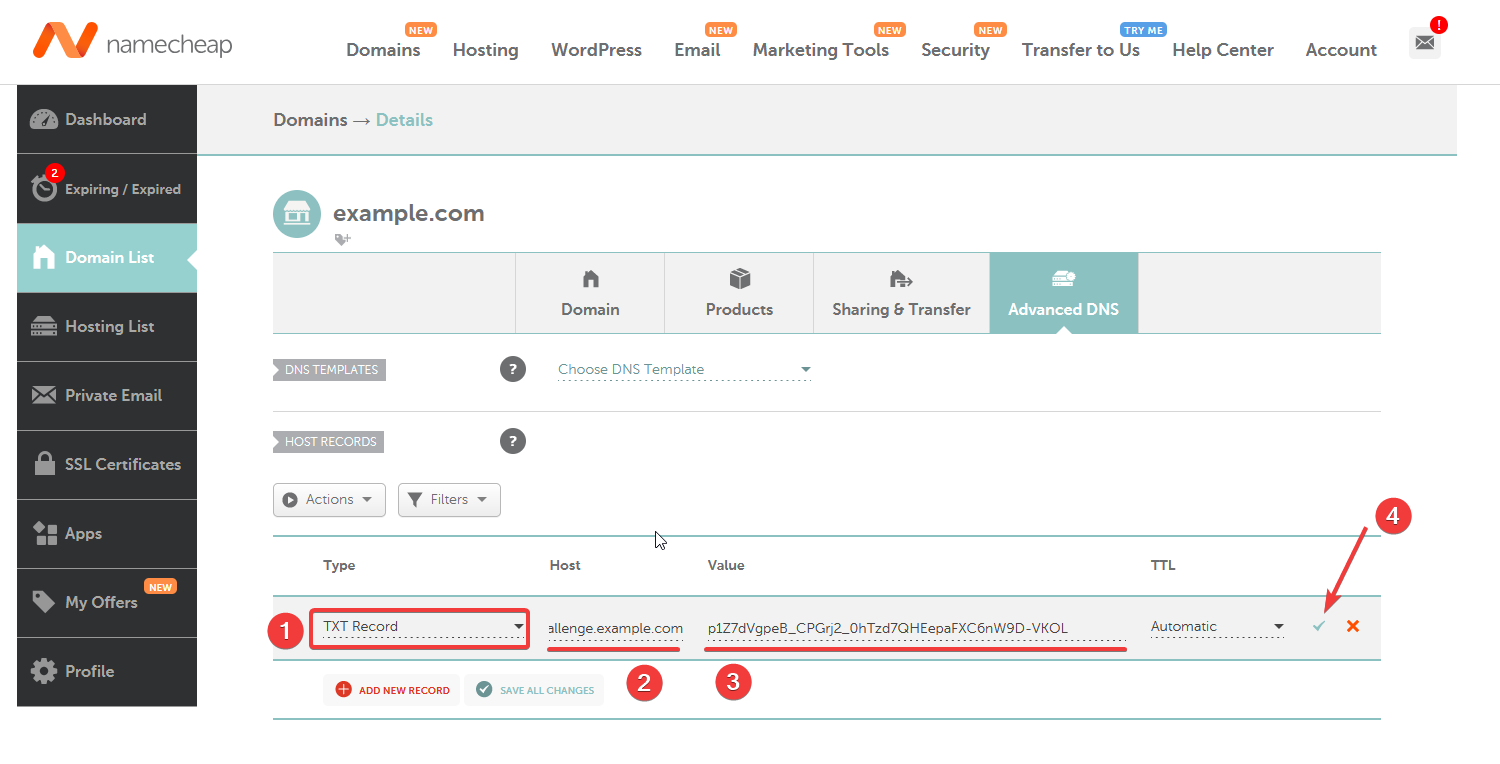
Now let's add the **TXT** record using the Add Record button again and add the Name/Host and the Value/Points provided to you on the BotPanel for the TXT record.

<img src="https://2161910846-files.gitbook.io/~/files/v0/b/gitbook-x-prod.appspot.com/o/spaces%2FmDHZxxLwMjnoq0qGSjFm%2Fuploads%2FkO3Kgprcu3kQfpC8J2a2%2F15.png?alt=media" alt="" width="563">
{% endstep %}

{% step %}
If you did everything correctly you should see something like this:
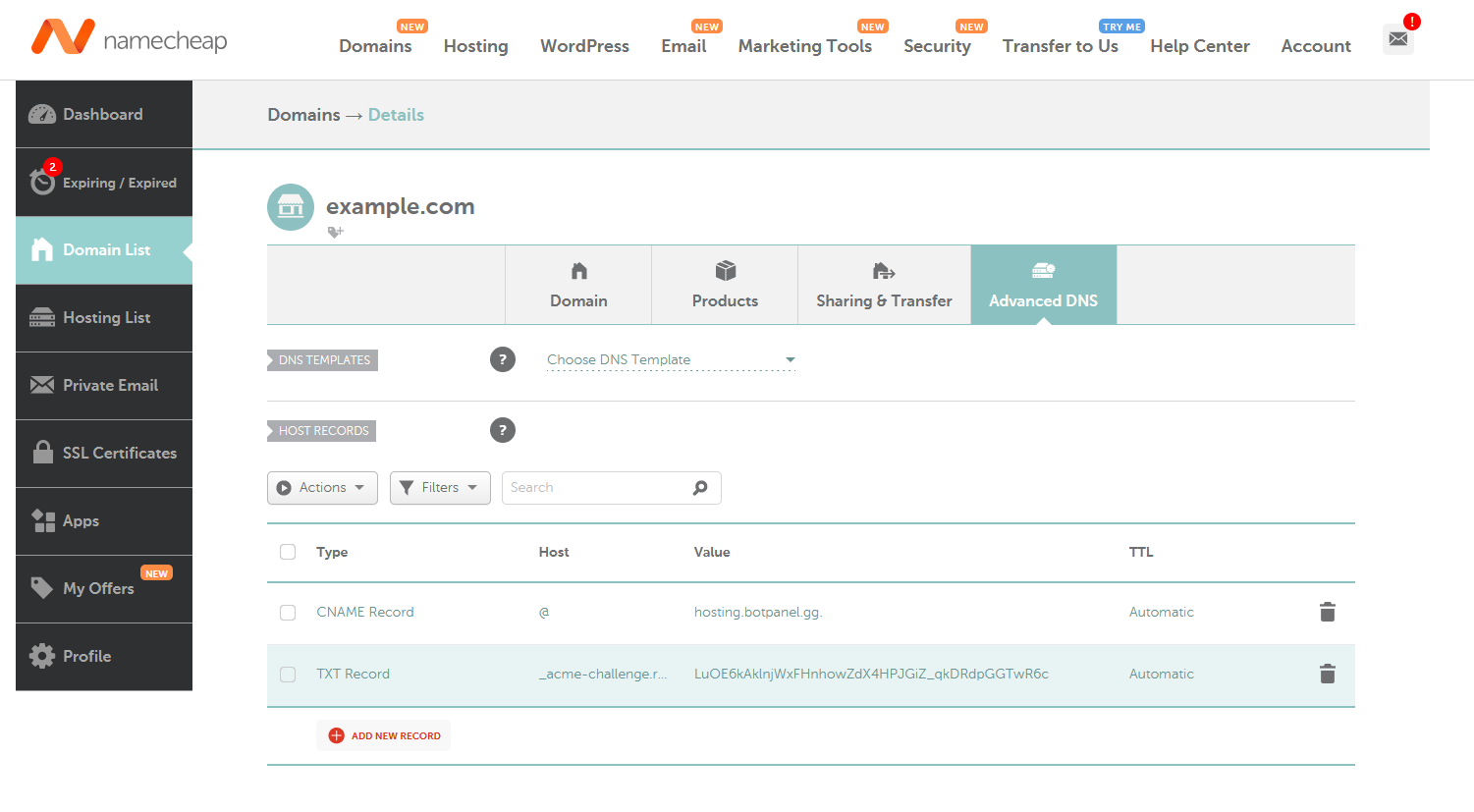
<img src="https://2161910846-files.gitbook.io/~/files/v0/b/gitbook-x-prod.appspot.com/o/spaces%2FmDHZxxLwMjnoq0qGSjFm%2Fuploads%2FiqhOi2ugBrtgcrmawNz0%2F16.png?alt=media" alt="" width="563">

{% hint style="warning" %}
Please give the newly created records some time to take effect in some rare cases it could take up to 24 hours.
{% endhint %}
{% endstep %}

{% step %}
Go back to the BotPanel DNS tab after a while and check if you linked your domain successfully, if you did you should see something like this:

<figure><img src="https://2161910846-files.gitbook.io/~/files/v0/b/gitbook-x-prod.appspot.com/o/spaces%2FmDHZxxLwMjnoq0qGSjFm%2Fuploads%2F41Wvzs2BPXxaoXLaaGDS%2Fimage.png?alt=media&amp;token=c4a4a497-c7cb-48ea-837f-4008ad1b64ce" alt=""><figcaption></figcaption></figure>
{% endstep %}
{% endstepper %}

Congrats! You've successfully set up your domain to work with BotPanel.

{% hint style="info" %}
If you have any questions, please check out our [FAQ](/domain-setup-guides/faq) and [Guidelines & Contact](/guidelines-and-contact) for more information.
{% endhint %}


# Cloudflare

In this guide, you'll learn how to connect your Cloudflare domain or subdomain to BotPanel.

## **Getting Started** <a href="#id-44i2qmvpb6e8" id="id-44i2qmvpb6e8"></a>

Before we begin, let’s make sure you have everything you need to setup your custom domain.

* A Cloudflare Domain
* A BotPanel bot with any tier of [BotPanel Pro](https://dashboard.botpanel.gg/pro)

## **Configuring DNS on BotPanel** <a href="#kw7mvw57oqf3" id="kw7mvw57oqf3"></a>

{% stepper %}
{% step %}
Login into the [BotPanel Dashboard](https://dashboard.botpanel.gg/panel/dns) and select the bot to which you would like to add the domain.
{% endstep %}

{% step %}
Visit the DNS tab on the side menu and click the Add Domain button.

<figure><img src="https://2161910846-files.gitbook.io/~/files/v0/b/gitbook-x-prod.appspot.com/o/spaces%2FmDHZxxLwMjnoq0qGSjFm%2Fuploads%2FpYxGBH5TRmgRY84G5sO5%2F0.png?alt=media" alt=""><figcaption></figcaption></figure>
{% endstep %}

{% step %}
You will be prompted with an option to buy the domain via our partner NameCheap, or if you have already purchased a domain on NameCheap. Select one of the options and continue. If you need to buy a domain, please visit the [NameCheap](/domain-setup-guides/guides/namecheap) page instead.

<img src="https://2161910846-files.gitbook.io/~/files/v0/b/gitbook-x-prod.appspot.com/o/spaces%2FmDHZxxLwMjnoq0qGSjFm%2Fuploads%2FyhyJubFY7pQMdccvEzGr%2F1.png?alt=media" alt="" width="455">
{% endstep %}

{% step %}
You will have to provide your domain or a subdomain you would like to add ( the one that you’ve purchased or linked to Cloudflare ) and click the Add Domain button.

Using the domain:

<figure><img src="https://2161910846-files.gitbook.io/~/files/v0/b/gitbook-x-prod.appspot.com/o/spaces%2FmDHZxxLwMjnoq0qGSjFm%2Fuploads%2FHkOUKPWVHdqbbMmPhOht%2F2.png?alt=media" alt="" width="563"><figcaption></figcaption></figure>

Using a subdomain (example):<br>

<figure><img src="https://2161910846-files.gitbook.io/~/files/v0/b/gitbook-x-prod.appspot.com/o/spaces%2FmDHZxxLwMjnoq0qGSjFm%2Fuploads%2FHyOU4ajsSah4xz4940n7%2F3.png?alt=media" alt="" width="563"><figcaption></figcaption></figure>

Upon adding your domain:

<img src="https://2161910846-files.gitbook.io/~/files/v0/b/gitbook-x-prod.appspot.com/o/spaces%2FmDHZxxLwMjnoq0qGSjFm%2Fuploads%2FvaefOgv938h0AAKYutFk%2F4.png?alt=media" alt="" width="563">

Using a subdomain:

<figure><img src="https://2161910846-files.gitbook.io/~/files/v0/b/gitbook-x-prod.appspot.com/o/spaces%2FmDHZxxLwMjnoq0qGSjFm%2Fuploads%2FJc2Y27asBCDdOhksuHXw%2F5.png?alt=media" alt="" width="563"><figcaption></figcaption></figure>
{% endstep %}

{% step %}
Now click the Manage button to view the DNS records you will later need to add to Cloudflare in order to verify your domain and link it to the BotPanel. You should see something like this:

<img src="https://2161910846-files.gitbook.io/~/files/v0/b/gitbook-x-prod.appspot.com/o/spaces%2FmDHZxxLwMjnoq0qGSjFm%2Fuploads%2FZ3PwDC6LZ17nR04vJRjy%2F6.png?alt=media" alt="" width="563">

Using a subdomain:

<figure><img src="https://2161910846-files.gitbook.io/~/files/v0/b/gitbook-x-prod.appspot.com/o/spaces%2FmDHZxxLwMjnoq0qGSjFm%2Fuploads%2F06u1OGHRBZ15VRJyaWX8%2F7.png?alt=media" alt="" width="563"><figcaption></figcaption></figure>
{% endstep %}
{% endstepper %}

You will need the information provided to you similar to the ones on the screenshot later in the NameCheap DNS configuration guide below.

## **Configuring DNS on Cloudflare** <a href="#id-4a2k48ftgv4f" id="id-4a2k48ftgv4f"></a>

{% stepper %}
{% step %}
Login into your CloudFlare account and select the domain you have setup DNS for on the BotPanel in the previous guide. You can do this by going to the Account Home tab and select the domain.

<figure><img src="https://2161910846-files.gitbook.io/~/files/v0/b/gitbook-x-prod.appspot.com/o/spaces%2FmDHZxxLwMjnoq0qGSjFm%2Fuploads%2FwBylVbmWysN7WCOLn2oF%2Fimage.png?alt=media&amp;token=add7cc14-7d21-42c2-acfe-013632595f55" alt="" width="563"><figcaption></figcaption></figure>
{% endstep %}

{% step %}
Visit the Overview tab in your domain management page and select the DNS Records in the DNS options on the right.

<figure><img src="https://2161910846-files.gitbook.io/~/files/v0/b/gitbook-x-prod.appspot.com/o/spaces%2FmDHZxxLwMjnoq0qGSjFm%2Fuploads%2FaPCJc47iqSS4VGMA2B2e%2Fimage.png?alt=media&amp;token=a3bd8181-f364-4418-8bae-a25f2dba38a8" alt="" width="563"><figcaption></figcaption></figure>
{% endstep %}

{% step %}
Add the records provided to you on the BotPanel under the DNS tab in your domain settings to the NameCheap ( Step 2 ).

The records provided to you on the BotPanel should look something like this

<img src="https://2161910846-files.gitbook.io/~/files/v0/b/gitbook-x-prod.appspot.com/o/spaces%2FmDHZxxLwMjnoq0qGSjFm%2Fuploads%2FiLcGyfOyL08TxH01Tb7O%2F10.png?alt=media" alt="" width="563">

Using a subdomain:

<figure><img src="https://2161910846-files.gitbook.io/~/files/v0/b/gitbook-x-prod.appspot.com/o/spaces%2FmDHZxxLwMjnoq0qGSjFm%2Fuploads%2FD7YIaug4oLu4M4qi9gH4%2F11.png?alt=media" alt="" width="563"><figcaption></figcaption></figure>
{% endstep %}

{% step %}
Add the **CNAME** record using the Add Record button and add the Name/Host and the Value/Points provided to you on the BotPanel for the CNAME record.

<figure><img src="https://2161910846-files.gitbook.io/~/files/v0/b/gitbook-x-prod.appspot.com/o/spaces%2FmDHZxxLwMjnoq0qGSjFm%2Fuploads%2FE2QQkO3RFvleMDeJkgvk%2Fimage.png?alt=media&amp;token=5d71edef-7cb2-471e-a3d4-bc0498abd35a" alt="" width="563"><figcaption></figcaption></figure>

<figure><img src="https://2161910846-files.gitbook.io/~/files/v0/b/gitbook-x-prod.appspot.com/o/spaces%2FmDHZxxLwMjnoq0qGSjFm%2Fuploads%2FlkAuDkWvmlI70H8pg8Ve%2Fimage.png?alt=media&amp;token=d5e91425-f7ec-477a-b638-3456478e7340" alt="" width="563"><figcaption></figcaption></figure>

Using a subdomain:

<figure><img src="https://2161910846-files.gitbook.io/~/files/v0/b/gitbook-x-prod.appspot.com/o/spaces%2FmDHZxxLwMjnoq0qGSjFm%2Fuploads%2Frb7uQQvgAWljWR3HMOhp%2Fimage.png?alt=media&amp;token=a3e95f61-750c-42c5-8803-4d3d791ca870" alt="" width="563"><figcaption></figcaption></figure>
{% endstep %}

{% step %}
Now let's add the **TXT** record using the Add Record button again and add the Name/Host and the Value/Points provided to you on the BotPanel for the TXT record.

<figure><img src="https://2161910846-files.gitbook.io/~/files/v0/b/gitbook-x-prod.appspot.com/o/spaces%2FmDHZxxLwMjnoq0qGSjFm%2Fuploads%2FFHCKnw0bYHqUbrQAYouC%2Fimage.png?alt=media&amp;token=08435802-c627-4269-ae26-374555c5ba91" alt="" width="563"><figcaption></figcaption></figure>

{% hint style="warning" %}
Please give the newly created records some time to take effect in some rare cases it could take up to 24 hours.
{% endhint %}
{% endstep %}

{% step %}
Go back to the BotPanel DNS tab after a while and check if you linked your domain successfully, if you did you should see something like this:

<figure><img src="https://2161910846-files.gitbook.io/~/files/v0/b/gitbook-x-prod.appspot.com/o/spaces%2FmDHZxxLwMjnoq0qGSjFm%2Fuploads%2FuGJ8tZ4e77uTrHlj1KCO%2Fimage.png?alt=media&amp;token=0a9f70a5-2d2d-4bfa-bf37-0a66c80d78f1" alt="" width="563"><figcaption></figcaption></figure>
{% endstep %}
{% endstepper %}

Congrats! You've successfully setup your domain to work with BotPanel.

{% hint style="info" %}
If you have any questions, please check out our [FAQ](/domain-setup-guides/faq) and [Guidelines & Contact](/guidelines-and-contact) for more information.
{% endhint %}